
1. Introduction to Google’s AI Overview and Classic Search
Google Search has been the go-to tool for finding information online for decades. For many of us, the classic version of Google with its simple list of blue links, snippets, and related searches feels reliable and familiar. Recently, however, Google introduced a new feature called AI Overview. Instead of just showing traditional results, the search engine now generates AI-powered summaries at the top of the page.
The idea behind AI Overview is to give users instant answers without needing to click through multiple sites. While this sounds convenient, not everyone is happy about it. Many users prefer the traditional search style because it gives them more control, more perspectives, and the chance to explore original sources directly. Some also worry about accuracy, since AI-generated summaries can occasionally be incomplete or misleading.
If you’re someone who finds AI Overview distracting and would rather stick to the classic Google search experience, you’re not alone. The good news is, while there isn’t a direct “off” button provided by Google, there are several tricks, browser tweaks, and workarounds that can help you minimize or avoid AI results.
Table of Contents
2. Understanding Google’s AI Overview Feature
Google’s AI Overview is one of the biggest changes to the search engine in recent years. Instead of only showing websites in a list, Google now uses artificial intelligence to create a summary of the answer right at the top of the search results. To understand why it exists and how it affects your searches, let’s break it down. This feature has been rolled out slowly, but now more and more users are starting to see it. Knowing how it works can help you decide whether to keep using it or find ways to avoid it.
2.1 What is AI Overview in Google Search
AI Overview is a feature that shows you a short, AI-generated answer to your question before the normal list of websites. For example, if you search for “best ways to lose weight,” instead of just showing links, Google may display a summary with tips collected from different sites. This means you see information quickly without clicking through multiple pages. However, the answers are not always perfect, and sometimes they can be too general or miss out on details. It’s important to remember that the AI is pulling content from other websites, not creating original ideas.
2.2 Why Google Introduced AI Overview
Google introduced AI Overview to make searching faster and easier. With so many people using AI tools like ChatGPT, Google wants to keep users on its platform by giving instant answers. The goal is to save time and provide a clear summary so you don’t have to visit several websites to find what you need. Another reason is competition, as AI tools grow in popularity, Google needs to stay ahead by blending search with AI. This also helps the company show that it’s ready for the future of internet browsing, where speed and convenience matter most.
Some key reasons behind this update include:
- Saving user time: Instead of opening multiple links, users can get the main answer right away.
- Staying competitive: With the rise of ChatGPT, Perplexity, and other AI tools, Google wants to keep its users engaged.
- Improving user experience: Quick answers make Google feel more interactive and modern.
- Ad revenue protection: By keeping users on its page longer, Google can show more ads and maintain its business model.
- Shaping the future of search: Google wants to move from being just a search engine to being an AI-powered knowledge assistant.
2.3 How It Changes the Search Experience
AI Overview changes how people interact with search results. Some find it helpful because they get quick answers without extra clicks. But others feel it’s limiting because it reduces the visibility of trusted websites and makes it harder to explore different opinions. For students, researchers, or professionals who need depth and accuracy, AI summaries may not always be reliable. It also shifts traffic away from smaller websites that depend on search visibility. Over time, this could change how content creators share information online, making the internet feel less open and diverse.
3. Can You Really Disable AI Overview?
Many users want a quick “disable” button for AI Overview, but the truth is Google has not given that option yet. Still, you can reduce how often you see it by using some tricks and browser tweaks. Before that, it’s important to know what Google says about the feature, what limitations it has, and what misconceptions people have about disabling it.
The good news is that while you can’t fully remove AI Overview, you are not stuck with it either. By making a few smart changes in your search habits, browser settings, and using helpful extensions, you can bring back a search experience that feels much closer to the classic Google many people prefer.
3.1 Google’s Official Stance on AI Overview
Google has said that AI Overview is now part of the main search experience. They have not provided any official setting to turn it off. According to Google, the feature is designed to provide faster and more accurate results.
Process to Reduce AI Overview:
Even though you cannot disable it directly, you can try:
- Scroll past the AI Overview to reach classic search results.
- Use the “More” or “Web” tab (in some regions) that shows only the traditional blue link results.
- Use browser extensions that filter out AI boxes
3.2 Limitations Users Should Know
While AI Overview can be useful in some cases, it also comes with several drawbacks that users should be aware of. The feature is still evolving, which means it may not always provide reliable results. Many people feel it takes away control from the user by deciding what information to show first. It also creates challenges for those who prefer to explore multiple sources and get a wider perspective before making decisions. Knowing these limitations will help you set realistic expectations when using Google Search.
AI Overview comes with several challenges:
- Summaries may be incomplete or inaccurate.
- Websites lose visibility since answers appear at the top.
- No permanent toggle exists in Google’s settings.
- The features may look different in different regions.
- Workarounds may stop working if Google updates its design.
Process to Work Around Limitations:
- If the AI Overview shows up, scroll down to check real sources.
- Use specific keywords like “site:.org” or “site:.gov” to directly reach trusted sources.
- Try alternative search engines like Bing, DuckDuckGo, or Brave when you need classic results only.
3.3 Common Misconceptions About Turning It Off
When a new feature like AI Overview appears, people quickly start looking for shortcuts to remove it. Because of this, several myths and false tips have spread online. Many users believe that simple tricks like going incognito or switching browsers can solve the problem, but these don’t actually work. It’s important to separate facts from assumptions so you don’t waste time trying methods that won’t help. Knowing the truth makes it easier to focus on real solutions that can actually reduce or hide AI results.
There are many myths about disabling AI Overview. Let’s clear them up:
| Misconception | Reality |
| Incognito mode removes AI Overview | False – It still appears in Incognito mode. |
| Changing Google account settings turns it off | False – No setting exists in your account to disable it. |
| Ad blockers remove AI Overview by default | Not always true – Works only if you customize filters. |
| Using a different browser will stop it | False – It’s tied to Google Search, not the browser. |
Process That Actually Helps:
- Install an extension like uBlock Origin and add custom rules to hide AI Overview boxes.
- Switch your default search engine in browser settings (set DuckDuckGo, Startpage, or Brave Search).
- Create custom search shortcuts (for example, type “/w” for Wikipedia searches) to skip Google summaries.
4. Browser Settings and Extensions to Minimize AI Results
If you feel frustrated with Google’s AI Overview taking too much space, you’re not alone. While Google doesn’t offer a direct way to turn it off, smart use of browser settings, ad blockers, and extensions can help reduce how often you see it. These tricks don’t completely remove AI Overview, but they give you a cleaner search experience and more control over what you see.
Many users have already started relying on these simple fixes to get back the feel of classic search results. By combining ad blockers with browser add-ons, you can push AI boxes out of sight and focus only on organic links. It’s not a perfect solution, but it makes searching less distracting and closer to what you’re used to.
4.1 Using Ad Blockers and Custom Filters
One of the easiest ways to reduce AI Overview is by using ad blockers with custom filters. These tools are not limited to blocking pop-ups or banner ads. They can also hide specific elements of a page, including Google’s AI boxes. By setting up a simple rule, you can make the AI Overview disappear and keep your search results looking clean and traditional. This gives you more control over your browsing experience without relying on Google’s settings.
Steps with uBlock Origin:
- Install uBlock Origin from the [Chrome Web Store] or [Firefox Add-ons].
- Open Google Search and perform a query where AI Overview appears.
- Right-click inside the AI Overview box → select “Block element.”
- A red box will highlight the AI section → click Create to confirm.
- Save your filter, and the AI Overview will disappear from future searches.
This method is simple and works on most browsers, but it may need updates if Google changes its design.
4.2 Chrome and Firefox Extensions to Block AI Boxes
If you don’t want to deal with creating custom filters, browser extensions can do the heavy lifting for you. These tools are designed to automatically detect and hide Google’s AI Overview, saving you time and effort. Most of them work quietly in the background, so once installed, you won’t need to tweak settings every time you search. They’re also beginner-friendly, making them a great option if you want quick results without technical steps.
Steps with “Hide Google AI Overviews” (Chrome):
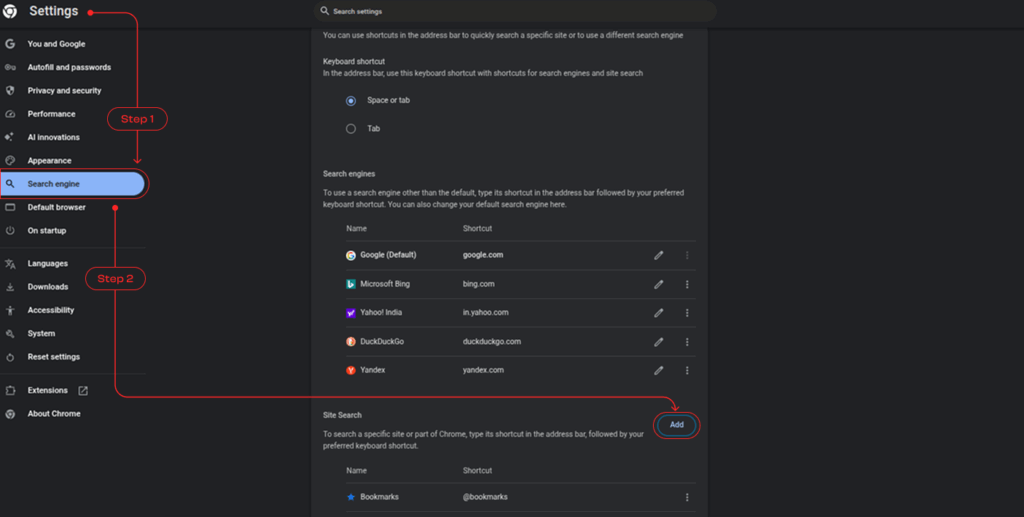
- Open Chrome and put chrome://settings/searchEngines in the search box.
- A new tab will open, go to Search Engine > Manage Search Engines and Site Search.
- Click on the Add button by the Site Search update. A new box will open.
- Fill in the form with the following:
- Name: AI Free Web
- Shortcut: @web
- {google:baseURL}search?q=%s&udm=14

- You’ll now see AI Free Web in the list.
- Click on the three stacked dots on the right side of this new option. Select Make Default.
Steps with “uBlacklist” (Firefox & Chrome):
- Install uBlacklist from the extension store.
- Go to Google Search → click the extension icon in the toolbar.
- Add filters like ai.google.com or keywords related to AI.
- Save changes, and the AI Overview section will no longer appear.
These extensions are regularly updated by developers who track Google’s changes, so they are often more reliable than manual filters.
4.3 Adjusting Search Layout Through Browser Add-ons
If you want deeper control over how Google Search looks, browser add-ons are the way to go. Unlike ad blockers or extensions that simply hide the AI Overview, add-ons let you customize the entire layout. This means you can remove unwanted sections, adjust spacing, or even make your search page look minimalistic. It’s a more advanced method, but it offers flexibility for users who want a cleaner and distraction-free search experience.
Steps with Stylus (Custom CSS):
- Install the Stylus extension for Chrome or Firefox.
- Click on Stylus in your browser toolbar → choose “Write style for Google.”
3. Paste the following CSS code:
div[data-content-feature=”1″] {
display: none !important;
}
4. Save the style → refresh Google Search.
5. The AI Overview box should now be hidden.
Steps with Tampermonkey (Custom Scripts):
- Install Tampermonkey from the extension store.
- Create a new script and paste a code snippet that skips AI Overview.
- Save and activate the script.
- Now, whenever you search, your browser will scroll directly to organic results.
These methods give you more control over your search experience until (or if) Google adds an official way to toggle AI Overview off.
5. Tweaking Search Settings for a Cleaner Experience
Sometimes, adjusting a few settings can give you a more classic search feel without relying only on extensions or filters. While these changes won’t completely remove AI Overview, they can minimize clutter and help you focus more on traditional web results. Think of these tweaks as small adjustments that improve your browsing comfort. They also give you more control over how your search page looks and behaves, making it easier to focus on the information you actually want. Even small tweaks can make a big difference in bringing back the simple, old-school search experience.
5.1 Switching to Classic Web Results View
Google still offers different types of views for search results. By clicking on “More” → “Web” at the top of the results page, you can switch to the classic web-only view. This hides extra elements like videos, shopping cards, and sometimes even AI-related sections. It’s a quick way to strip down results and see mostly text-based links. If you prefer the old-school Google look, this option brings you closer to it in just one click. It may not always remove every AI box, but it does create a cleaner layout that feels less crowded. Many users find this view faster to navigate since it reduces distractions and keeps things simple.
5.2 Changing Google’s Search Preferences
Google offers several built-in settings that can shape how your search results appear. While these options won’t completely disable AI Overview, they do let you fine-tune your browsing experience and reduce some of the clutter. By exploring the preferences section in your Google account, you can make the results page feel more personalized and less overwhelming. These small changes are often overlooked, but they can make searching feel more streamlined and efficient.
Inside your Google account, you can tweak search preferences to reduce distractions. For example:
- Turn off “Search features” like autocomplete or instant results.
- Adjust region settings since AI Overview may appear more often in certain countries.
- Change the results per page to show more links and reduce scrolling.
These settings don’t fully block AI Overview, but they make the search page cleaner and less dominated by extra features. Over time, these small adjustments can create a smoother experience.
5.3 Trying Alternative Search Engines
Sometimes the easiest way to avoid AI Overview is to step outside of Google altogether. Other search engines are gaining popularity because they keep results simple, private, and less cluttered with AI boxes. Many of them also focus on user privacy, meaning your searches aren’t tracked or personalized in the same way Google does. This makes them a solid choice if you want a cleaner experience and more control over your searches.
If you want to skip AI Overview entirely, the simplest option is switching to another search engine. Some popular choices include:
- DuckDuckGo → Focuses on privacy and gives straightforward, ad-light results.
- Brave Search → Blocks trackers and avoids AI clutter by default.
- Startpage → Delivers Google results but without personal tracking or AI overlays.
- Bing or Yahoo → Still have their own extras, but AI answers are less aggressive compared to Google.
Using an alternative doesn’t mean you have to leave Google forever. You can set up shortcuts or use them when you specifically want fast, AI-free results.
Comparison Table of Search Engines
| Search Engine | AI Overview / AI Answers | Privacy Level | Best For |
Very frequent (AI Overview at top of results) | Low – heavy tracking | AI-driven summaries + wide range of results | |
| DuckDuckGo | Rare, minimal AI features | High – strong privacy focus | Simple searches, privacy-conscious users |
| Brave Search | Rare, avoids AI clutter | High – tracker blocking | Clean, distraction-free results |
| Startpage | None (uses Google results, no AI boxes) | Very High – no tracking | Google-quality results without AI/ads |
| Bing | Has AI (Copilot), but less aggressive than Google | Medium – some tracking | Visual searches, Microsoft integration |
6. Practical User Workarounds to Avoid AI Summaries
Even though you can’t completely turn off AI Overviews, there are smart ways to limit how often they show up in your searches. With a few small habits, you can get cleaner results, save time, and keep more control over what you see.
Building these habits takes a little practice, but once you get used to them, you’ll notice a big difference. Instead of feeling stuck with whatever AI throws at you, you’ll be able to guide your searches the way you want. It’s all about taking back a bit of control and making search work for you, not the other way around.
6.1 Using Search Operators for Better Control
Sometimes, the fastest way to avoid AI Overviews is to take control of your search with precision. Instead of letting Google decide what’s “best” for you, search operators allow you to guide the results exactly how you want them. These commands act like shortcuts that filter out clutter and get you closer to real sources without the AI layer.
Google’s built-in search operators help you narrow results and skip unnecessary AI summaries. For example:
- Use quotation marks (” “) to search for exact phrases.
- Add a minus sign (-) to remove words you don’t want in the results.
- Try site:example.com if you want results only from a specific website.
These simple tricks push Google to give you direct links instead of broad AI-generated summaries.
6.2 Bookmarking Direct Sources Instead of Relying on AI
One of the easiest ways to cut down on AI summaries is to bypass search engines altogether and go straight to the sources you trust. If you already know where reliable information lives, why waste time scrolling through AI-generated overviews or cluttered results? Bookmarks act like shortcuts, taking you directly to the content you need with a single click. They also help you build a personalized library of go-to resources over time.
Instead of typing the same searches every time, save and bookmark reliable websites in your browser. For instance:
- Bookmark Wikipedia for quick facts.
- Save trusted news portals for updates.
- Keep a folder of industry-specific sites if you research often.
This way, you go straight to the source without giving AI Overview the chance to step in.
6.3 Creating Custom Search Shortcuts
If you often find yourself typing the same searches or visiting the same sites, custom shortcuts can save you time and reduce the chances of running into AI Overviews. Most modern browsers let you assign keywords or custom commands that act like mini search engines of your own. Instead of relying on Google’s default flow, you decide exactly where your query goes. This not only speeds up your browsing but also gives you full control over how you search.
If you want speed and control, set up custom shortcuts in your browser. Examples include:
- Making a keyword like “w” redirect to Wikipedia searches.
- Creating a shortcut for “ddg” to quickly search DuckDuckGo.
- Setting up your browser to search your favorite forum or site directly.
With these shortcuts, you skip Google’s extra layers and land exactly where you want.
7. Frequently Asked Questions (FAQ) About AI Overview
Q1. Can I completely disable Google’s AI Overview?
Q2. Does Incognito mode remove AI Overview?
Q3. Are there extensions that block AI Overview automatically?
Q4. Can changing Google’s search settings stop AI Overview?
Q5. Will using another search engine help avoid AI Overview?
Q6. Is AI Overview the same for all users worldwide?
8. Conclusion and Final Thoughts on Disabling AI Overview
Google’s AI Overview is here to stay, at least for now, and while it brings quick answers, it also creates frustration for users who prefer traditional search results. Since Google doesn’t provide a permanent toggle to switch it off, the best option is to combine multiple workarounds like browser extensions, ad blockers, custom search operators, and alternative search engines. These methods won’t erase AI Overview completely, but they do help you take back some control over your browsing experience.
The key is not to fight the technology blindly but to adapt smartly. By bookmarking trusted sources, using search shortcuts, and tweaking your browser setup, you can minimize interruptions and continue accessing reliable information. At the end of the day, the goal is to create a smoother, distraction-free search experience that works for you until Google finally introduces an official option to disable AI Overview.
It’s also important to stay updated because Google frequently changes its features and interface. Some tricks that work today might not work tomorrow, so keeping an eye on updates and exploring new extensions or tools will ensure you always have the best search experience possible.
Check out our latest blog on – “2025 Core Web Vitals Challenge: Every WordPress Site Owner Needs to Know”